
Cashculator 2.11 introduces a new way to get around your document: the Command Palette. If you’ve ever used a modern code editor, Spotlight, or Raycast, the idea will feel familiar. Press one keyboard shortcut, start typing, and jump straight to what you’re looking for: a category, a scenario, a report, a theme, a specific date column, a menu command, or even a transaction with a particular amount. No more hunting through menus, clicking between screens, or scrolling a long category list to find the one you need.
This tutorial walks through everything the Command Palette can do.
When would you use it?
- When you know what you want but don’t remember exactly where it lives in the menu.
- When you want to jump straight to a category, scenario, or report without the usual navigation steps.
- When you’re looking for a specific transaction and only remember the amount or a word from its description.
- When you want to switch themes, change the time scale, or flip to dark mode without leaving the keyboard.
- When you’re planning heavily in one document and need to move between many places quickly.
Opening the Command Palette
There are two ways to open it:
- Keyboard: press ⌘K (Command-K) anywhere in an open document window.
- Menu: choose View → Command Palette.
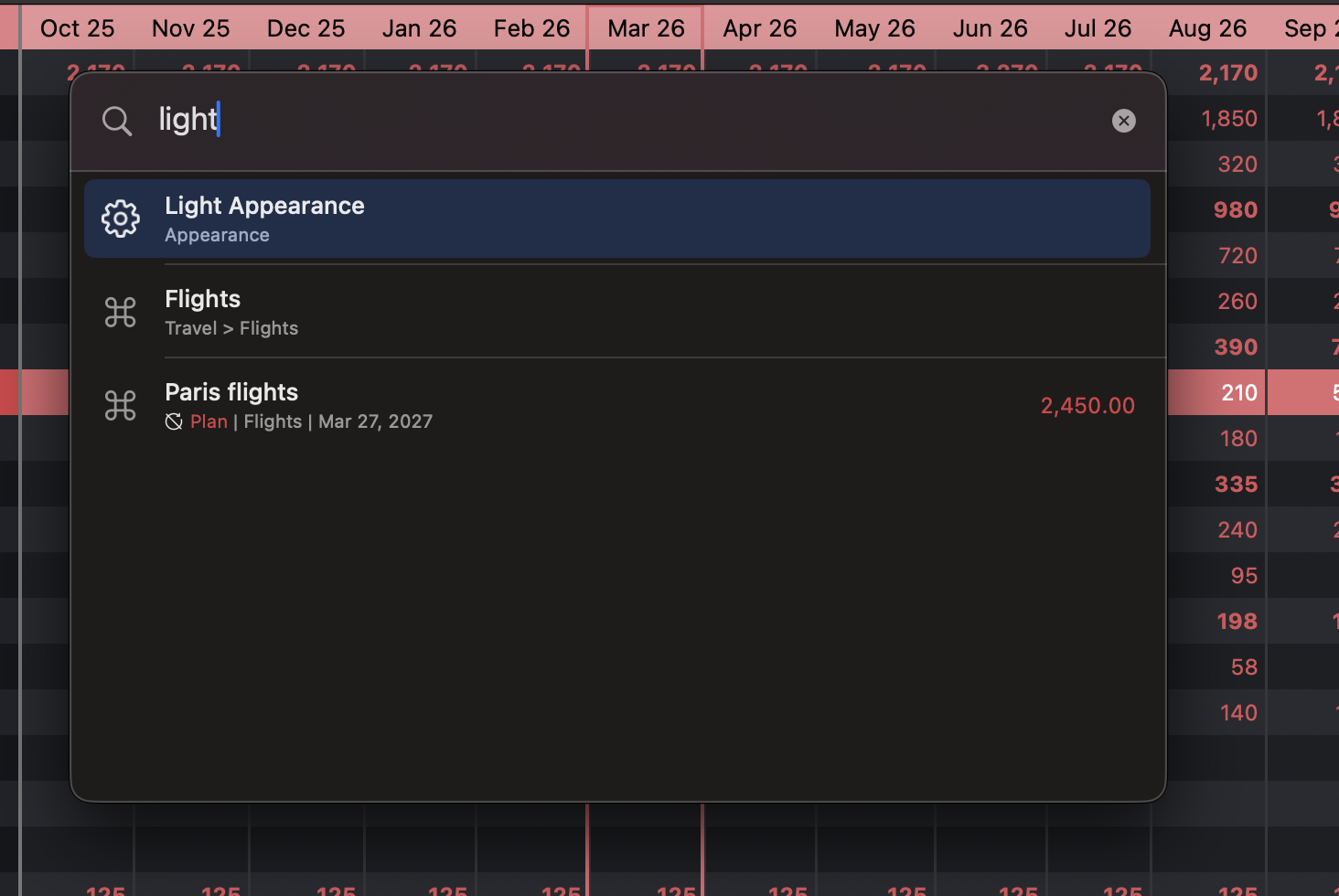
The palette opens as a compact floating panel centered over your document, with a search field at the top and a scrollable list of results below it.
To dismiss it, press ⌘K again, tap Escape, or click anywhere outside the floating window. It never steals focus in an intrusive way: it simply appears, waits for your input, and gets out of the way as soon as you’re done.
Using the search field
The search field is focused the moment the palette opens, so you can start typing right away. If you haven’t typed anything yet, the palette shows a list of commands sorted by how often and how recently you’ve used them, so your most-used actions rise to the top over time.
As you type, the list filters in real time. You rarely need to type a full name: three or four characters is usually enough. Use ↑ and ↓ to move through the list and Return (↩) to run the highlighted command. The mouse works too, if you’d rather point and click, but once you’re used to ⌘K you’ll probably leave your hands on the keyboard most of the time.
What you can do from the Command Palette
Get around your document
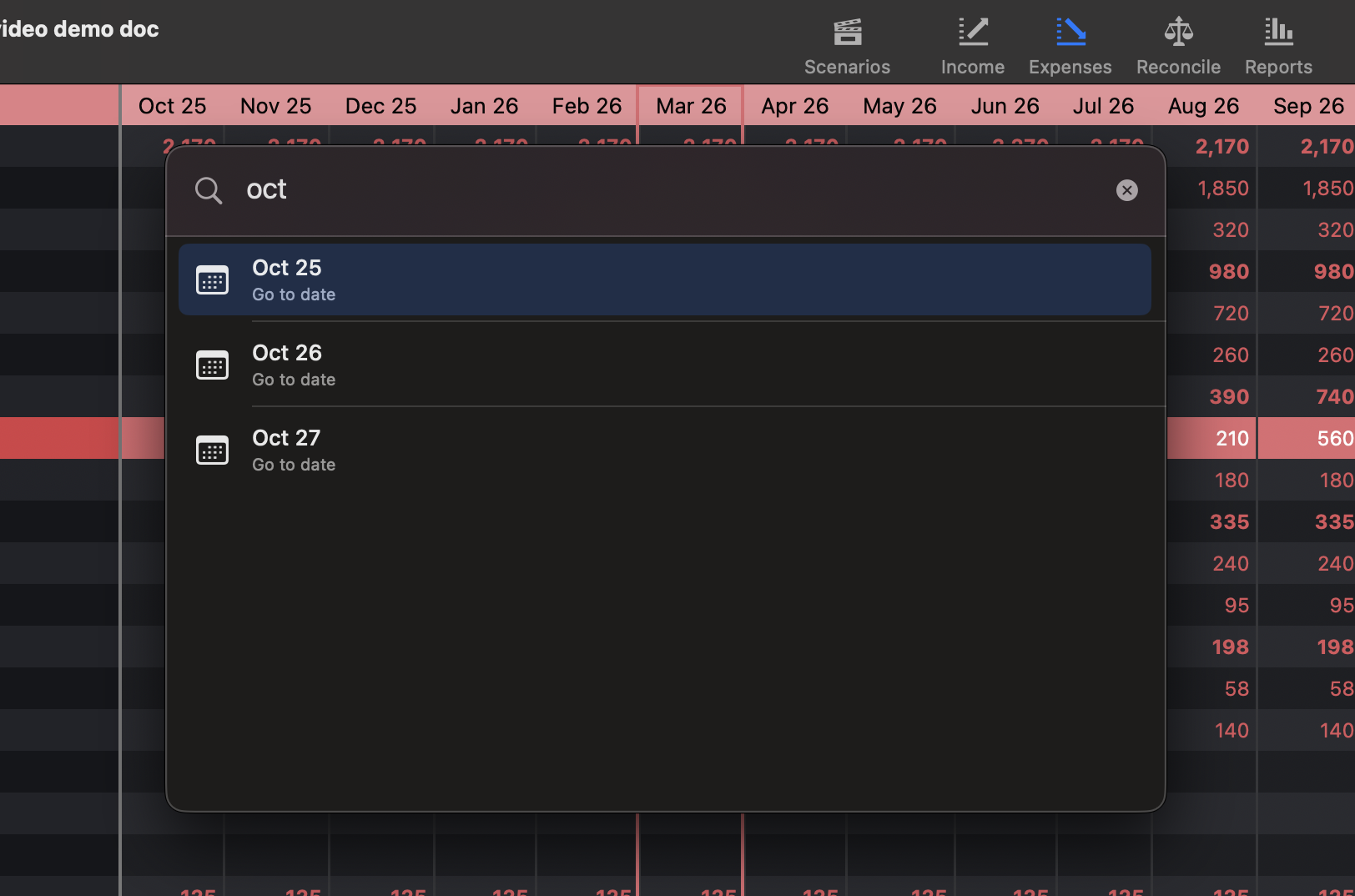
Everything you’d normally do with clicks on the toolbar or menus is one query away. You can switch between the four main screens (Income, Expenses, Reports, and Reconcile), open any of the reports (Income & Expenses, Balance, Actual vs Plan, Category Breakdown), change the time scale to Weekly, Monthly, or Yearly, jump to today, open the horizon picker to change your date range, and see your notifications. You can also navigate straight to a specific date column by name: if your horizon spans several months, typing “Oct” or “2026” will offer the matching column and scroll your view to it when you pick one.
Jump to any category
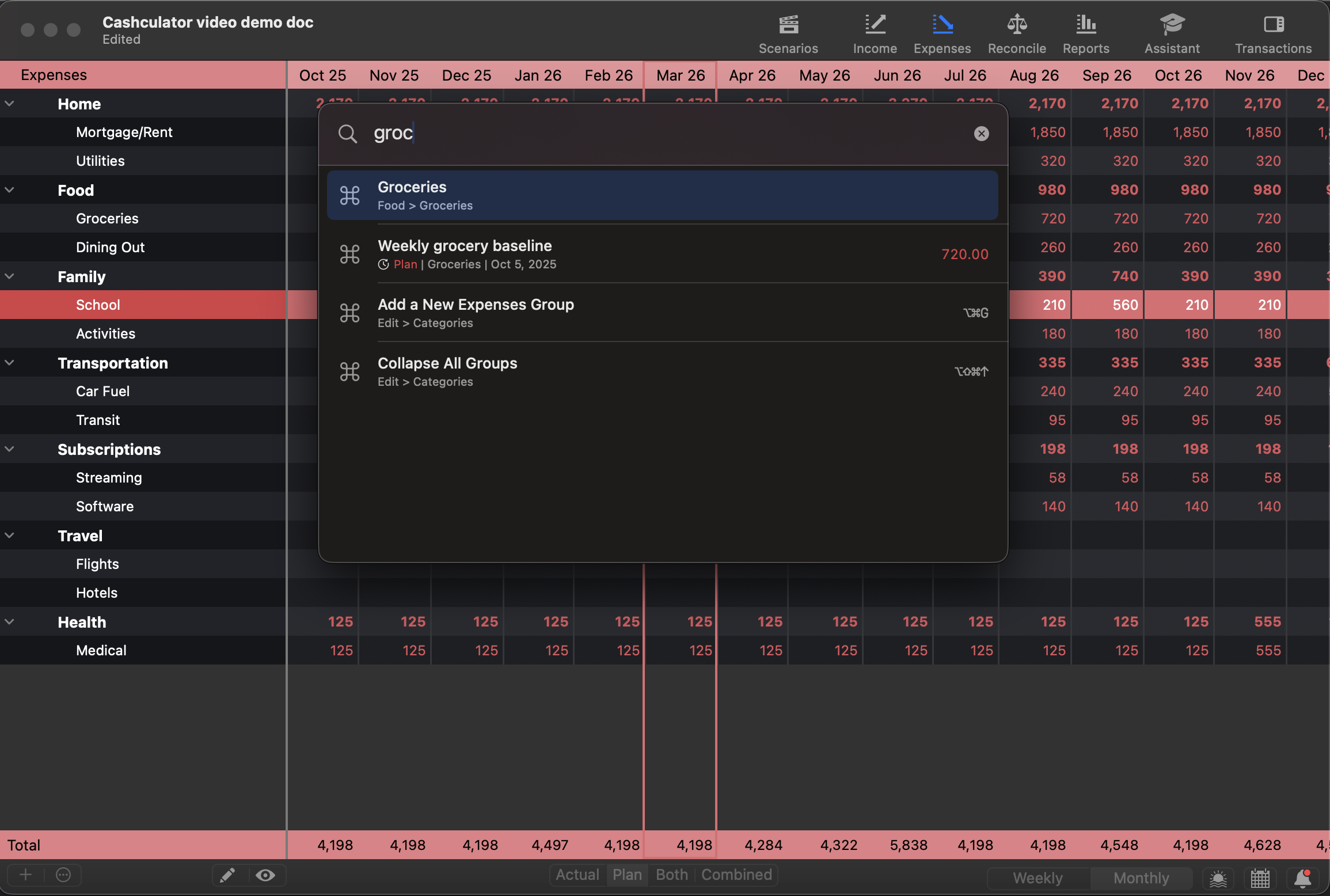
This is one of the best uses of the palette, especially in documents with a lot of categories. Type part of a category’s name and the palette lists matching income and expense categories together, with their icon and their position in the hierarchy. For example, Household > Groceries shows up with its group, so you can tell a “Gas” under Auto apart from a “Gas” under Utilities at a glance. Press Return and Cashculator switches to the correct screen and scrolls the category into view. If you’re on the Income screen, income categories are slightly prioritized in the results, and the same goes for expenses.
Switch between scenarios
If you keep multiple scenarios in your document (for example, a base budget and a few “what if” variations), you can switch between them from the Command Palette. Type the scenario’s name, or part of it, and pick it from the list.
Change the appearance or color theme
You can flip Cashculator’s appearance between System, Light, and Dark, or switch to any installed color theme (built-in or custom), without leaving the keyboard. Type “dark”, “light”, or part of a theme’s name and press Return. Cashculator ships with several themes including accessibility-focused ones, and any themes you’ve created yourself are available here too.
Run menu bar commands
The palette also covers many of the regular menu commands you’d otherwise find in the menu bar, including toolbar and sidebar toggles. When a menu command has a keyboard shortcut, you’ll see the shortcut displayed on the right side of the row, which is a nice way to discover shortcuts for anything you find yourself reaching for often. Commands that aren’t applicable in your current context are left out, so you won’t see options you can’t actually run.
Search your transactions
The palette also searches transaction notes across the current scenario. Each match shows the transaction’s note as the title, its category and date as the subtitle, the amount on the right-hand side, and a small icon indicating whether it’s a planned or actual transaction. Pressing Return on a transaction navigates to its category and selects it. If the transaction falls outside your current horizon, Cashculator will expand the horizon so the transaction is visible.
Find a transaction by amount
Here’s a small but powerful trick. If your search query is just a number, the palette switches into amount search mode. Instead of trying to match “12.50” as text inside notes, it finds transactions whose amount equals 12.50. This is ideal for “what was that $47.83 charge on my card?” moments, when you don’t remember the merchant but know the number.
Putting it all together
Here are a few example workflows to show how the Command Palette fits into day-to-day planning:
- “Let me check my balance report.” ⌘K, type “bal”, Return. One and a half seconds from anywhere in the app.
- “Where did I put that $240 transaction?” ⌘K, type 240, arrow down to the right match, Return. The palette opens the transaction in its category.
- “I want to compare this scenario with the other one.” ⌘K, type the other scenario’s name, Return. You’re there.
- “Let me try the dark theme for a second.” ⌘K, type “dark”, Return. Later, ⌘K, type “light”, Return.
- “Jump to October.” ⌘K, type “oct”, Return. The view scrolls to the October column of whichever screen you’re on.
- “Switch to groceries.” ⌘K, type “groc”, Return. Expense screen with Groceries highlighted.
Wrapping up
The Command Palette is a small feature with a big compounding effect. It’s designed to reduce the friction between “I want to see this” and actually seeing it, and the more you use it, the smarter it gets about what you reach for most. If you’ve been navigating Cashculator mostly with the mouse, try making ⌘K a habit for the next week. It doesn’t replace the sidebar, the menu bar, or any of the normal ways of moving around, but it does give you a much faster path when you already know where you’re going.
Once it’s a habit, you’ll wonder why every app doesn’t have one
Ready to take control of your spending?
Wish you could forecast future income, expenses and cash flow? Check out Cashculator — Personal Finance today.
Learn how the program works using the free version, then choose a monthly or yearly subscription to unlock unlimited income and expense categories.