
How to connect Cashculator’s built-in MCP server to Claude Code, Claude Desktop and other assistants that support HTTP MCP servers, so AI assistants can read, analyze and manage your financial data.
Prerequisites
- Cashculator 2.11 or later installed and running
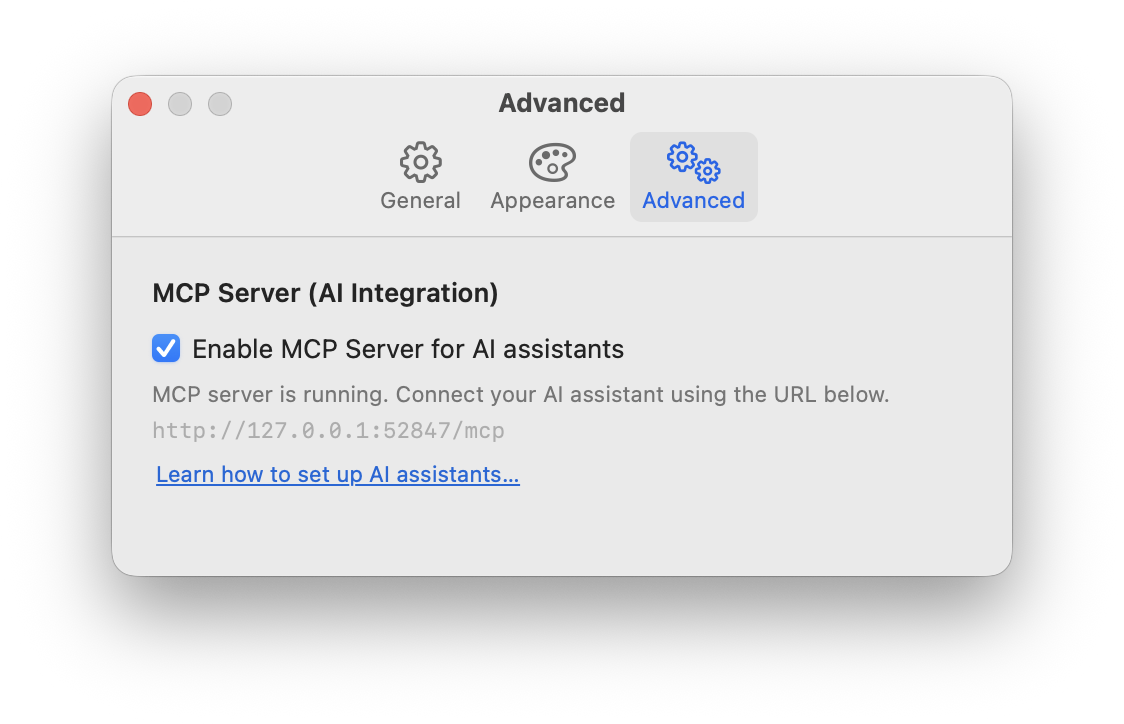
- Enable the MCP server in Cashculator: go to Settings > Advanced and check “Enable MCP Server for AI assistants”
- Confirm the status shows “Running” — the server listens on
http://127.0.0.1:52847/mcp(127.0.0.1 is the localhost IP address) - Keep Cashculator open while using AI assistants (the server only runs while the app is running).
- Have the document you want to work on open. You can have more than one document open. If you do, you need to tell your AI assistant which document to use.
- Configure your AI assistant to use the Cashculator MCP server using the steps below.
- You may need to restart your AI assistant after enabling the MCP server in Cashculator (or after relaunching it) so that it recognizes the new server
Claude Code (CLI)
Claude Code supports the streamable HTTP transport directly via a url property.
Option A: Project-level config (recommended for a specific project)
Create or edit .claude/settings.json in your project directory:
{
  "mcpServers": {
    "cashculator": {
      "url": "http://localhost:52847/mcp"
    }
  }
}
Option B: Global config (available in all projects)
Edit ~/.claude/settings.json:
{
  "mcpServers": {
    "cashculator": {
      "url": "http://localhost:52847/mcp"
    }
  }
}
Verify the connection
After restarting Claude Code, run /mcp to see connected servers. You should see “cashculator” listed with its tools.
Claude Desktop (macOS app)
Claude Desktop does not support the url transport directly. Instead, it uses mcp-remote — a bridge that connects to HTTP-based MCP servers.
Step 1: Make sure you have Node.js installed
mcp-remote is an npm package that runs via npx. You need Node.js installed on your Mac. If you don’t have it:
brew install nodeStep 2: Open the configuration file
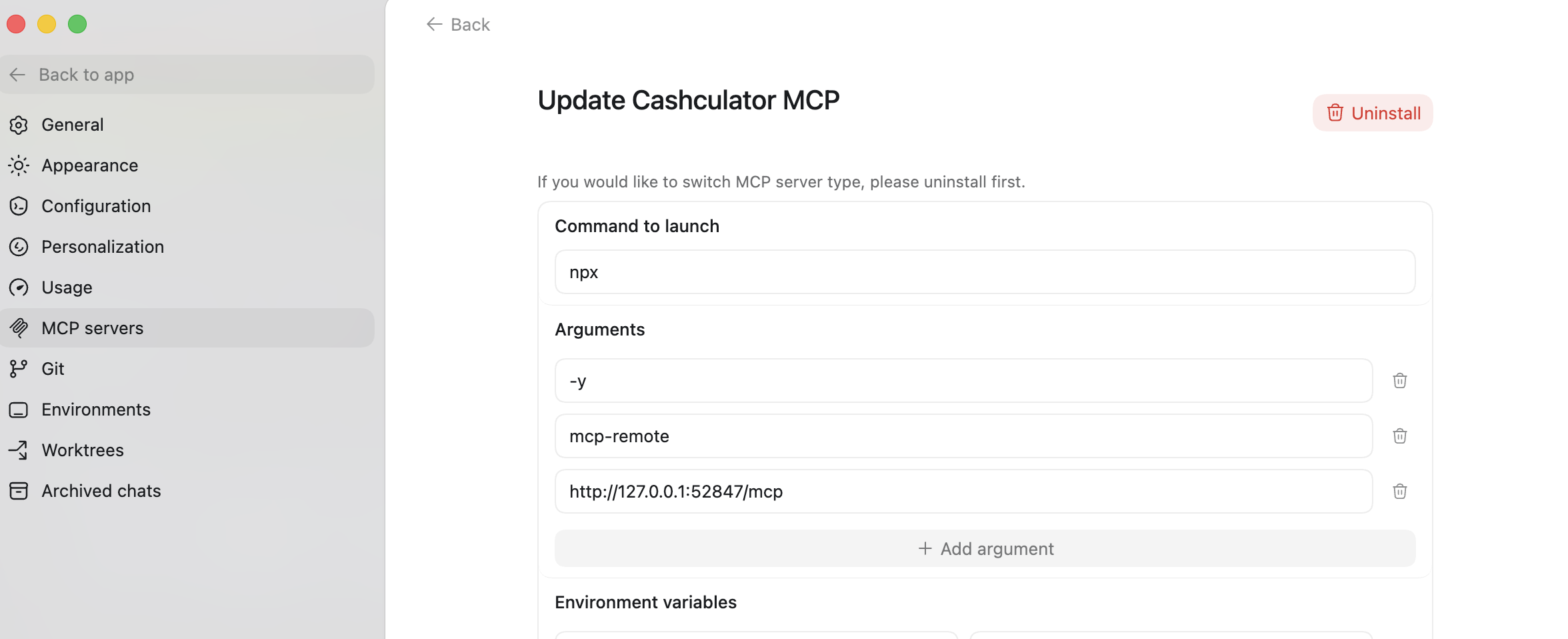
Open Claude Desktop and go to Settings > Developer > Edit Config, or edit the file directly at:
~/Library/Application Support/Claude/claude_desktop_config.jsonStep 3: Add the Cashculator server
Add a cashculator entry to the mcpServers section:
{
  "mcpServers": {
    "cashculator": {
      "command": "npx",
      "args": [
        "-y",
        "mcp-remote",
        "http://localhost:52847/mcp"
      ]
    }
  }
}
If you already have other MCP servers configured, add cashculator alongside them inside the existing mcpServers object.
Step 4: Restart Claude Desktop
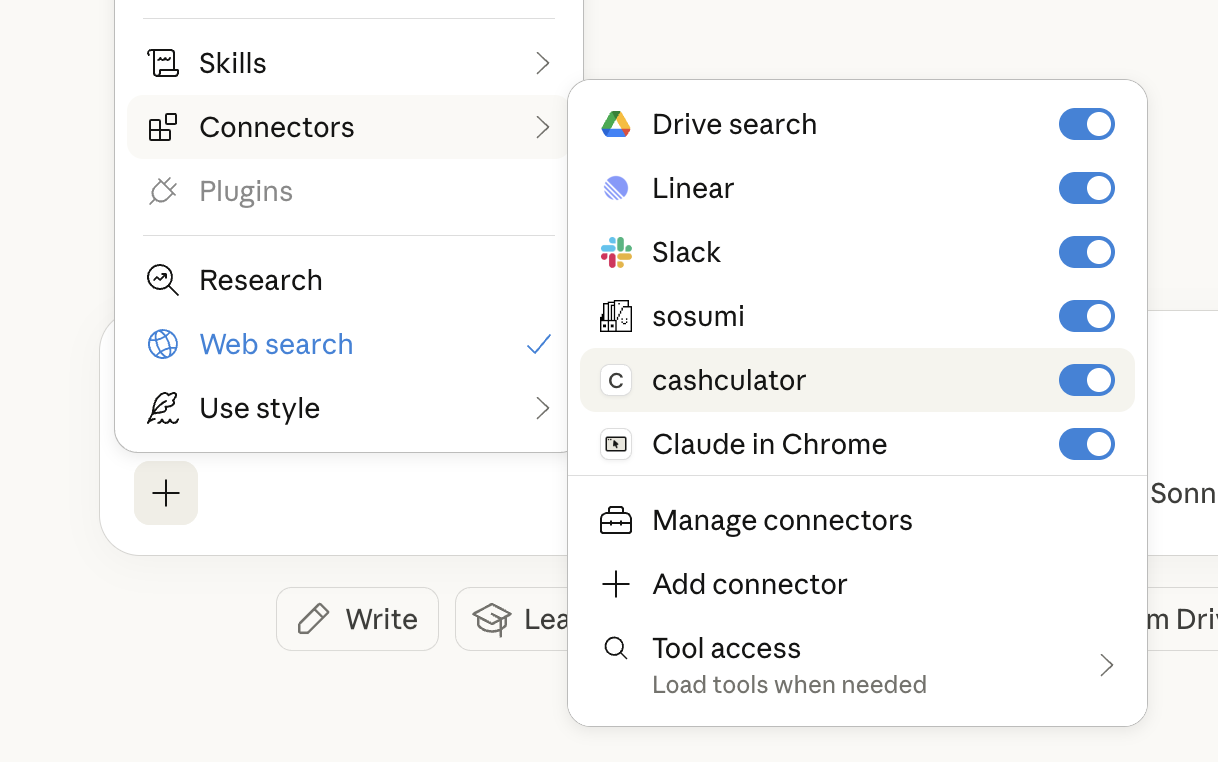
Quit and reopen Claude Desktop. You should see “Cashculator” in the Connectors list for the Chat.
OpenAI Codex
Similar to Claude Desktop chat, using npx mcp-remote in a STDIO-type MCP server
ChatGPT Desktop app
There’s no support for local MCP servers in the ChatGPT Desktop app yet.
Usage tips
Your AI assistant, using MCP, can quickly create multiple transactions, move them or remove, edit, find transactions, generate scenarios, edit categories and much more. You can ask it to scan and add a receipt or you can ask it to create a new scenario that suits your needs. Or you can use it to import a CSV file (it will auto-categorize the transactions, may even create new categories for you).
Try asking “set up a demo budget for a student at <name a university>”. Add some more details to the prompt and see it generate a sample budget.
Or ask it to “Duplicate my default scenario and modify it to edit transactions related to my trip to New York this summer, moving them to December.”
Troubleshooting
Server not connecting:
- Make sure Cashculator is running and the MCP server is enabled in Settings > Advanced
- Check that the status shows “Running”
- Verify nothing else is using port 52847
Custom port:
If you need to use a different port (e.g., because of a conflict), you can change it via Terminal:
defaults write com.apparentsoft.Cashculator2 MCPServerPort -int 52900Then update the port number in your AI app’s configuration to match. Restart Cashculator after changing the port.
Tools not appearing:
- In Claude Code: run
/mcpto check server status - In Claude Desktop: check Settings > Developer for connection errors
- Try restarting both Cashculator and the AI app
Security Notes
- The MCP server only accepts connections from your own computer (localhost). It is not accessible from other devices on your network.
- No authentication is required because the server relies on macOS process isolation.
- Your financial data is only shared with AI assistants you explicitly connect. No data is sent anywhere unless you initiate a conversation that uses Cashculator tools.
- All operations support Undo (Cmd+Z) in Cashculator, so any changes made by an AI assistant can be reversed.
Ready to take control of your spending?
Wish you could forecast future income, expenses and cash flow? Check out Cashculator — Personal Finance today.
Learn how the program works using the free version, then choose a monthly or yearly subscription to unlock unlimited income and expense categories.